
IPTV Internet Speed: How Much Mbps Do You Really Need?
August 29, 2026 · 8 min read
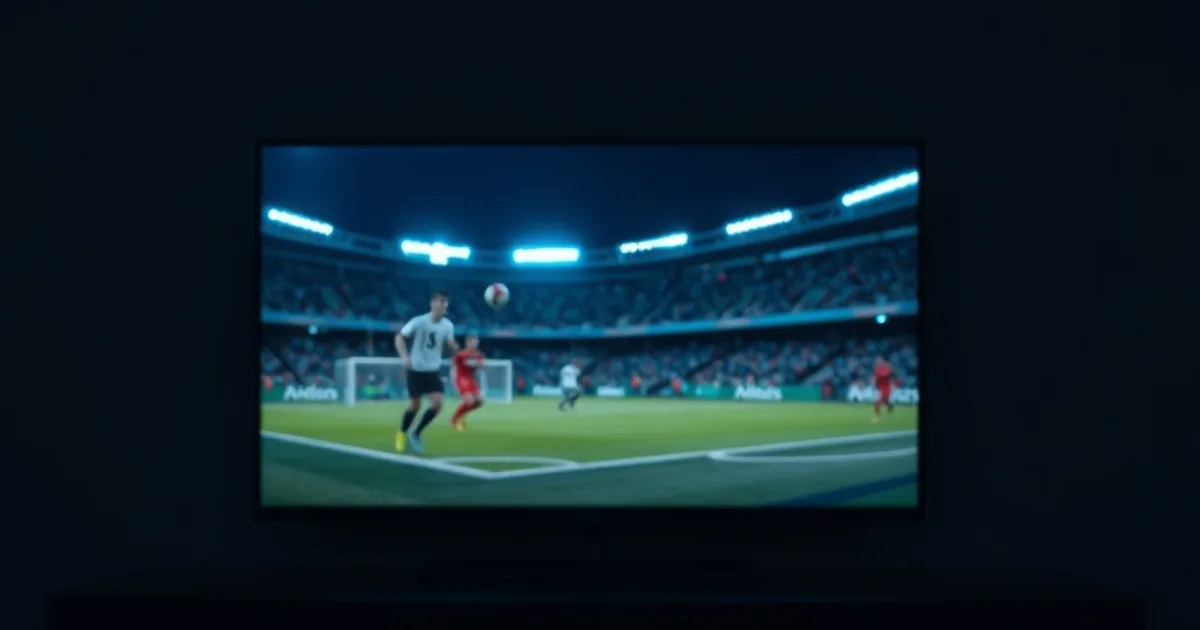
Every September, the same question floods streaming forums: I just set up a new Fire Stick / Apple TV / Android box — why does my IPTV keep buffering? The timing isn't a coincidence. Back-to-school routines push people to finally replace the old cable box, and this year the calendar adds urgency: the Champions League league phase kicks off September 8-10, 2026, and the NFL regular season opens September 9. Millions of people are unboxing new streaming hardware in the exact same week they want to watch live football.
The problem is that most setup guides answer the wrong question. They tell you the general Netflix-style Mbps number for HD or 4K and stop there. But IPTV isn't Netflix — there's no local buffering cushion or adaptive pre-loading on most players, and your set-top box matters as much as your router. A Fire Stick decoding a 4K H.265 stream over Wi-Fi behaves differently than an Apple TV on Ethernet, even on the identical internet plan.
This guide gives you the real numbers: what each device actually needs at each quality level, what happens when two or three people in the house stream at once, and why a fast speed test result doesn't guarantee a smooth picture during a Champions League match.
How Much Speed Do You Need? Quick Reference Table (SD/HD/4K/8K)
These are per-stream figures — the bandwidth one single device consumes while playing one channel or VOD title. Treat them as a floor, not a target: real-world networks lose headroom to Wi-Fi overhead, background app updates, and other devices on the same router.
SD (480p): 3-4 Mbps. Fine for a kitchen screen or a secondary TV where picture quality is a lower priority than just having the game on.
HD (720p-1080p): 8-12 Mbps. This is the realistic baseline for most IPTV sports and entertainment channels, and where the majority of Alfa IPTV viewing happens.
4K (2160p): 25-35 Mbps. IPTV 4K streams are typically encoded higher than on-demand 4K from Netflix or Disney+ because live sports has more motion and less compression-friendly content, so budget toward the top of that range, not the bottom.
8K: 50-80+ Mbps. Still a niche format for IPTV in 2026 — few channels broadcast in native 8K, and few TVs decode it — but if you own 8K hardware, plan bandwidth like you're running two 4K streams at once.
Not sure which quality setting fits your actual internet plan?
Alfa IPTV on Fire Stick: Speed Requirements by Quality Level
The Fire Stick (and Fire TV Stick 4K/4K Max) is the most common device our subscribers use, and it's also the most bandwidth-sensitive one because of its Wi-Fi-only design (except the Fire TV Cube and newer 4K Max, which support Ethernet via adapter). For SD and HD content, 15 Mbps of real, measured Wi-Fi throughput is a safe working number — not your plan's advertised speed, but what the Stick itself receives.
For 4K playback, push that to 25 Mbps minimum, and ideally 35-40 Mbps if the Fire Stick sits more than one room away from the router. The chipset in the base Fire TV Stick (non-4K) can't decode 4K at all regardless of bandwidth, so check your model before troubleshooting a picture-quality issue that's actually a hardware limitation.
If you're buying new hardware this month for the Champions League run, our setup walkthrough covers app installation and player configuration step by step: see /alfa-iptv-firestick-setup.
Alfa IPTV on Apple TV: Why 4K Needs More Than HD
Apple TV (4K, 3rd gen or later) handles decoding more efficiently than most budget streaming sticks, and it supports Ethernet natively via an adapter or the Apple TV 4K's built-in port — a real advantage for anyone who wants the most stable connection possible for live sports. But efficient decoding doesn't reduce the bandwidth the stream itself requires.
For HD channels, 12-15 Mbps is comfortable. For 4K, budget 30 Mbps or more — Apple TV's tvOS player is stricter about buffering thresholds than some Android-based apps, so it will drop to a lower bitrate or stall sooner when bandwidth dips below the stream's requirement, rather than pushing through with visible artifacts the way some Android players do.
Full setup instructions, including which app to use and how to add your Alfa IPTV playlist on Apple TV, are here: /iptv-on-apple-tv-2026.
Android Box + Smart TV: Ethernet vs Wi-Fi Performance Test
Android TV boxes are the most flexible category — most support Ethernet, dual-band Wi-Fi, and multiple player apps — which also makes them the easiest to troubleshoot when something goes wrong. The rule of thumb: a wired Ethernet connection needs roughly 20-30% less headroom than Wi-Fi for the same visual quality, because you eliminate packet loss from interference, distance, and competing 2.4GHz devices (microwaves, baby monitors, neighboring routers).
In practice, that means a 4K stream that stutters at 30 Mbps over Wi-Fi from two rooms away often plays perfectly at the same 30 Mbps over a wired connection. If your Android box or smart TV is within cable reach of your router, run Ethernet — it's the single highest-impact, zero-cost fix for buffering.
Full native-app installation steps for Android boxes: /iptv-android-box-setup-guide-2026. If you're comparing a cheap Fire Stick against a Chromecast with Google TV for a secondary room, we break down the trade-offs at /chromecast-google-tv-vs-fire-stick-cheap-iptv-2026.
Multi-Device Scenario: Can Your Internet Handle 2-4 Simultaneous Streams?
This is the question competitor guides almost never answer, and it's the one that actually determines whether match night goes smoothly. Bandwidth needs stack additively across devices sharing the same internet connection — there's no discount for streaming the same or different channels at once.
Two HD streams (e.g., living room + bedroom, common during a Champions League doubleheader): 16-24 Mbps combined. Three HD streams (a household with kids watching something else while parents watch the match): 24-36 Mbps. One 4K stream plus two HD streams — a realistic family-of-four Saturday, main TV in 4K and two secondary devices in HD: 55-70 Mbps combined. Four simultaneous HD streams: 35-45 Mbps.
Add roughly 20% on top of any of these totals to cover other household internet use — video calls, game downloads, phone backups — that competes for the same connection during peak evening hours. If your plan's advertised speed sits right at these numbers rather than comfortably above them, that's usually the real cause of buffering that only happens on match nights.
Internet Speed Test: How to Check You're Ready
Run your speed test on the actual device that streams, not your phone — a phone on 5G or a laptop plugged into Ethernet next to the router will read faster than a Fire Stick on Wi-Fi in another room, and that gap is exactly what causes buffering the phone test never predicted.
Test at the time you'll actually watch. A speed test at 2pm tells you little about 8pm, when everyone in the neighborhood is also streaming and your ISP's local node is under peak load — this matters more during high-demand windows like a Champions League matchday or NFL Sunday.
Run the test three times, five minutes apart, and use the lowest result as your real number, not the highest. Consistency matters more than a single best-case reading.
Stability Matters More Than Raw Speed: Ping, Jitter, and Buffering
A 100 Mbps connection with high jitter will buffer more than a stable 30 Mbps connection. Jitter — the variation in delay between data packets — is what actually causes the picture to freeze, not a low average speed. Live sports streams are especially sensitive because there's no large pre-buffer the way there is with on-demand content; the stream is closer to real time.
Aim for jitter under 30ms and ping under 50ms for the smoothest live viewing. Satellite internet and some congested cable networks post fine average speeds but poor jitter, which explains why a household with a 'good enough' plan on paper still struggles specifically during live matches.
If buffering only happens during peak hours (evenings, weekends, big match nights) while speed tests look fine at other times, the issue is very likely network congestion at your ISP's local level or in your own home — not your plan's advertised ceiling.
Ready to set up Alfa IPTV on the right device before kickoff?
Upgrade Checklist: When to Notify Your ISP
Consider contacting your ISP if: your measured speed during peak hours (not your test at 2am) falls short of your plan's advertised number by more than 20%; buffering happens even on a single HD stream over Ethernet with nothing else running; or jitter consistently exceeds 30ms regardless of time of day.
Before calling, gather three pieces of evidence — router model, three peak-hour speed test results, and whether the issue happens on wired as well as wireless devices. ISPs respond faster to a support ticket with specifics than a vague 'it's slow' complaint, and it also rules out router or Wi-Fi problems that no ISP upgrade will fix.
If you're setting up fresh for the new season and want a second opinion on whether your current plan is enough for your household's device mix, our sports package guide covers what a typical multi-device football household actually needs: /getting-started-with-the-alfa-iptv-sports-package.
Frequently asked questions
Is 50 Mbps enough for IPTV on multiple devices?
Yes, for most households — 50 Mbps comfortably covers two HD streams plus normal browsing, or one HD stream and one 4K stream with light background use. It gets tight with two simultaneous 4K streams or four HD streams running at once during peak hours.
Why does my IPTV buffer even though my internet speed test shows plenty of Mbps?
Speed tests measure your connection to a nearby test server, not the stability of your route to the streaming source over time. Jitter, packet loss, Wi-Fi interference, and peak-hour ISP congestion can all cause buffering on a connection that tests fast at other times.
Does Ethernet really make a noticeable difference over Wi-Fi for IPTV?
Yes. A wired connection removes interference, distance loss, and competition from neighboring Wi-Fi networks, which typically lets the same stream play smoothly at roughly 20-30% less bandwidth than it would need over Wi-Fi.
What internet speed do I need to watch 4K on a Fire Stick without buffering?
Budget 25 Mbps as a hard minimum measured at the Fire Stick itself, and 35-40 Mbps if it connects over Wi-Fi from another room. The base (non-4K) Fire TV Stick model can't decode 4K at all, so confirm your hardware supports it before troubleshooting bandwidth.
How much speed do I need for a family of four watching different channels at once?
For one 4K stream on the main TV plus two HD streams on secondary devices, plan for roughly 55-70 Mbps combined, plus about 20% extra headroom for other household internet use during evening hours.
Will faster internet fix buffering that only happens during big matches?
Sometimes, but not always — buffering that appears specifically during high-demand windows like a Champions League matchday is often peak-hour network congestion at your ISP, not a lack of raw speed. Check ping and jitter during the match itself before assuming you need a plan upgrade.
Read next: the pricing page or the FAQ.