
IPTV on Android Box: Setup Guide 2026
August 7, 2026 · 9 min read
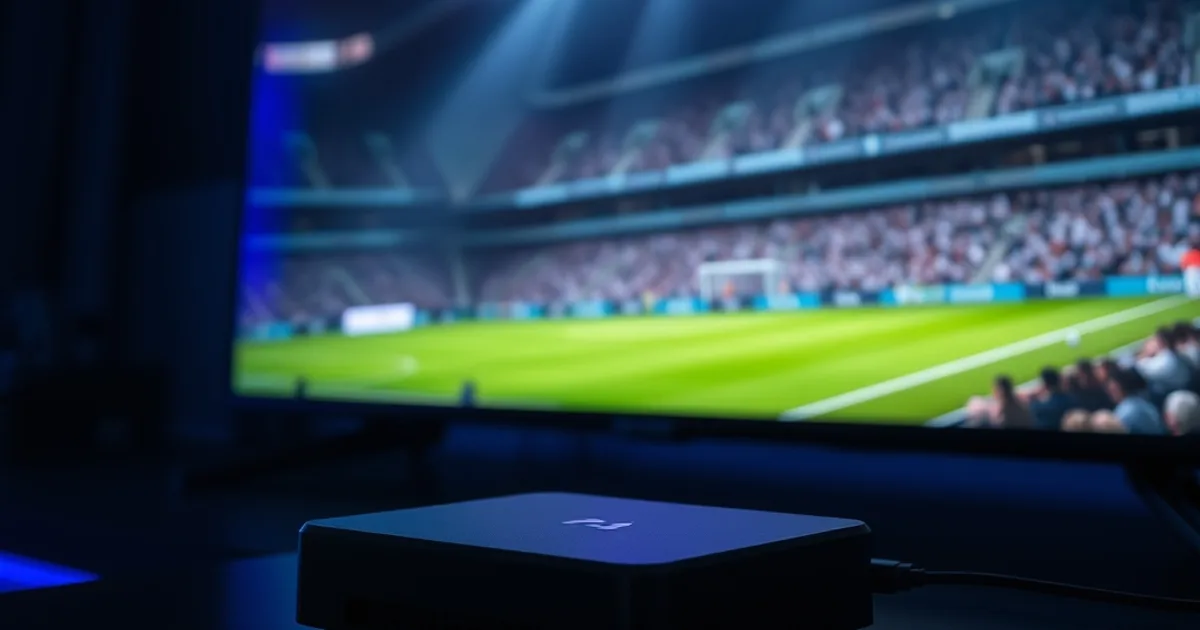
Premier League 2026-27 kicks off August 22, and pre-season friendlies are already filling schedules across August — which means the setup questions are piling up faster than usual this month. Android TV boxes sit right behind the Fire Stick as the most affordable way to get IPTV onto a real television, and for viewers who already own a Mi Box, an NVIDIA Shield, or a TCL Android TV set, there's no reason to buy anything else before kickoff.
The problem is that most Android box setup guides online are written for IPTV in general — vague app recommendations, no mention of playlist formats, and nothing about what happens when the picture freezes two minutes into a match. This guide is different: it walks through the actual steps for getting Alfa IPTV running cleanly on an Android box, tuned for 4K where your connection supports it, and hardened against the buffering issues that ruin live football.
Whether you're setting up a brand-new box this week or troubleshooting one that's never quite worked right, everything below is written specifically for Alfa IPTV subscribers — not a generic IPTV explainer.
Why Android TV Boxes for IPTV: Cost, Performance & 4K Potential
An Android TV box turns any HDMI-equipped television into a smart TV without replacing it. For IPTV specifically, that matters because the box runs full Android apps — not a stripped-down smart TV OS — which means you get proper support for player apps, subtitle handling, and hardware-accelerated 4K decoding that many built-in smart TV platforms handle poorly.
Compared to a Fire Stick, a mid-range Android box typically has more RAM and a less restrictive app ecosystem, since it isn't tied to Amazon's storefront rules. That translates to smoother app switching and fewer forced updates interrupting a match. Compared to a smart TV's native apps, sideloading is simpler and the hardware is dedicated to media playback rather than juggling a dozen other TV functions in the background.
The 4K potential is real but conditional: the box needs a chipset capable of HEVC/H.265 decoding at your stream's bitrate, your TV needs an HDMI port that supports the resolution, and — most importantly — your internet connection needs to sustain the bitrate without dropping. Buying the right box solves the first two; the section on optimizing performance below solves the third.
Not sure which Android box fits your setup? Ask before you buy anything.
Which Android Box Should You Buy? Xiaomi Mi Box vs NVIDIA Shield vs TCL
The Xiaomi Mi Box is the budget entry point. It runs stock Google TV, supports 4K HDR playback, and is generally the cheapest way to get a certified Android TV experience rather than a knockoff Android build. It's a solid choice if you mainly watch in standard definition or 1080p and want something reliable without spending much.
The NVIDIA Shield is the performance option. It uses a more powerful chipset than most competitors in its category, handles 4K HEVC decoding with headroom to spare, and its network stack tends to hold a stream steady even when other apps are running in the background. If you're planning to stream 4K channels regularly or want one box to also handle gaming and other apps, the Shield is worth the extra cost.
TCL's Android TV boxes and built-in Android TV sets sit in the middle — good value, official Google TV certification, and 4K support on most current models, though the processors are generally less powerful than the Shield's. They're a reasonable choice if you already own TCL hardware or want Google TV features (voice search, built-in casting) without paying Shield prices.
For most Alfa IPTV subscribers, the practical decision is simple: Mi Box or TCL for HD viewing on a budget, Shield if 4K and multitasking matter. All three run the player app this guide uses without issue.
What You Need Before Setup: Hardware, Internet Speed & Subscription
Before touching the box, confirm three things. First, an active Alfa IPTV subscription with your login credentials or M3U playlist URL on hand — check your account details or the /tarifs page if you still need to choose a plan. Second, a wired Ethernet connection to your router if at all possible; Wi-Fi works, but Ethernet removes the single biggest variable in stream stability. Third, know your actual internet speed (not the plan you pay for — the speed you actually get), which you can check with any speed test app run on the same network as the box.
For HD viewing, a stable, low-latency connection is usually enough. For 4K, both the download speed and the connection's consistency matter — a fast but unstable Wi-Fi link will buffer a 4K stream even if the average speed looks fine on paper. If your box will sit far from the router, plan on a powerline adapter or mesh Wi-Fi node rather than hoping a weak signal holds up during a live match.
It's also worth updating the Android box's firmware and clearing any leftover storage before you start. Old boxes that haven't been updated in months are a common source of app crashes that get wrongly blamed on the IPTV service itself.
Step-by-Step: Installing IPTV Smarters Pro on Your Android Box
IPTV Smarters Pro is the most widely supported player for Android TV boxes and works cleanly with Alfa IPTV playlists. On your box, open the Google Play Store (or Play Store app on Mi Box/Shield/TCL), search for "IPTV Smarters Pro," and install it directly — no sideloading needed on any of the three boxes covered above, since all run certified Android TV with Play Store access.
Once installed, open the app and select "Login with Xtream Codes API" if Alfa provided you a server URL, username, and password, or "Load your playlist or file/URL" if you were given an M3U link instead. Enter the details exactly as provided — a single typo in the server URL is the most common reason a first login fails.
After entering your credentials, the app will sync your channel list, which can take anywhere from a few seconds to a couple of minutes depending on the size of the package and your connection speed. If the sync appears to hang for more than a few minutes, back out and retry rather than waiting indefinitely — a fresh attempt usually resolves it.
If you hit an authentication error at this stage rather than a sync issue, jump to the troubleshooting section below before assuming the account itself is the problem — most login errors are formatting mistakes, not account issues.
Loading Your Alfa IPTV Playlist & Activating 4K Streams
Once your channel list has synced, browse to the Live TV section and look for channels labeled with a 4K or UHD tag — Alfa groups these separately from the standard HD list so they're easy to find rather than mixed in with everything else. Selecting one for the first time can take a moment longer to buffer than an HD channel, since the player is negotiating a much larger bitrate.
If a 4K channel loads but immediately shows a black screen or stutters heavily, the most common cause on Android boxes is the device defaulting to a software decoder instead of hardware acceleration. In IPTV Smarters Pro's playback settings, check that hardware decoding is enabled — on the Shield this is on by default, but budget boxes sometimes need it toggled manually.
For sports specifically, our dedicated breakdown of the /blog/alfa-iptv-sports-package covers which channel groups carry which leagues, which is worth checking once your box is set up so you know exactly where to find Premier League coverage when the season starts on August 22.
Optimizing Performance: Ethernet, DNS & Cache Management
Ethernet remains the single highest-impact change you can make. A USB-to-Ethernet adapter on the Mi Box, or the built-in port on the Shield and most TCL boxes, removes Wi-Fi interference entirely — this alone resolves the majority of intermittent buffering complaints we see, especially in apartments with several competing Wi-Fi networks nearby.
Switching your box's DNS to a fast public resolver (such as 1.1.1.1 or 8.8.8.8) in the network settings can shave meaningful time off channel-switching delays, since the box has to resolve the stream server's address every time you change channels. This is a five-minute change under the box's Wi-Fi or Ethernet network settings.
Finally, clear the IPTV Smarters Pro app cache periodically from the Android box's app settings menu — not just on launch, but every few weeks. A bloated cache from months of channel-list syncs is a quiet but common cause of the app becoming sluggish over time, and clearing it takes seconds. For a deeper dive into eliminating buffering specifically, see our guide on /blog/getting-stable-anti-buffer-stream.
Troubleshooting: Buffering, Authentication Errors & Missing Channels
Buffering that happens only on certain channels (not all of them) usually points to that specific stream's source rather than your setup — try switching to a backup channel number if Alfa provides one, which is common practice for high-demand sports channels during peak viewing hours.
Authentication errors ("invalid username/password" or similar) almost always trace back to either an expired subscription, a typo in the server URL, or too many simultaneous connections on one account. Double-check your connection count against your plan before assuming the credentials themselves are wrong.
Missing channels after a sync usually mean the app cached an old channel list. Force-closing IPTV Smarters Pro and reopening it triggers a fresh sync; if that doesn't resolve it, remove the playlist and re-add it from scratch using the same credentials.
For anything beyond these common cases, our /blog/quick-troubleshooting guide covers a wider range of error messages and fixes across devices, not just Android boxes.
Your box is ready — see which Alfa IPTV plan gets you 4K and enough connections for the whole house before kickoff.
Multi-Device Viewing: Stream Alfa IPTV Across Your Home
Once your Android box is running smoothly, the same Alfa IPTV credentials typically work on other devices too — a phone for a second room, a tablet for the kitchen, or a laptop when you're away from the TV — subject to your plan's simultaneous-connection limit.
For households planning to watch on more than one screen during the same match, it's worth checking your current plan's connection allowance before the Premier League season starts rather than discovering a limit mid-game. The /tarifs page lays out what each tier includes.
Keeping one device (like the Android box) as your primary, always-updated setup and treating others as secondary tends to avoid the most common multi-device headache: an app on one device falling out of sync with an update the others already received.
Frequently asked questions
Do I need to root my Android TV box to install IPTV Smarters Pro?
No. IPTV Smarters Pro is available directly through the Google Play Store on the Mi Box, NVIDIA Shield, and TCL Android TV devices, so no rooting or sideloading is required for a standard installation.
Which Android box gives the best 4K performance for Alfa IPTV?
The NVIDIA Shield generally offers the most consistent 4K HEVC decoding of the three, thanks to its more powerful chipset. The Mi Box and TCL devices both support 4K playback but may need hardware decoding manually enabled for the smoothest results.
Why does my stream buffer on Wi-Fi but not on Ethernet?
Wi-Fi is more susceptible to interference from other devices and networks, and its throughput can fluctuate even when the average speed looks fine. A wired Ethernet connection removes that variability, which is why it's the top recommendation for stable streaming.
Can I use the same Alfa IPTV login on my Android box and my phone at the same time?
That depends on your plan's simultaneous-connection allowance. Check your current plan on the /tarifs page, or reach out directly if you're unsure how many devices your subscription supports.
What should I do if channels are missing after installing the app?
Force-close and reopen IPTV Smarters Pro to trigger a fresh channel sync. If channels are still missing, remove and re-add the playlist using your original credentials — this resolves most cases caused by a stale cached list.
Is an Android box better than a Fire Stick for IPTV?
Both work well with Alfa IPTV. Android boxes generally offer more RAM and a more open app ecosystem, which can mean smoother performance and fewer forced interruptions, while Fire Sticks are more compact and slightly cheaper on average. The right choice depends more on the hardware you already own than on any major performance gap.
Read next: the pricing page or the FAQ.