
Questions to Ask Before Choosing a Family IPTV Player: A Household Preparation Guide
October 26, 2026 · 15 min read
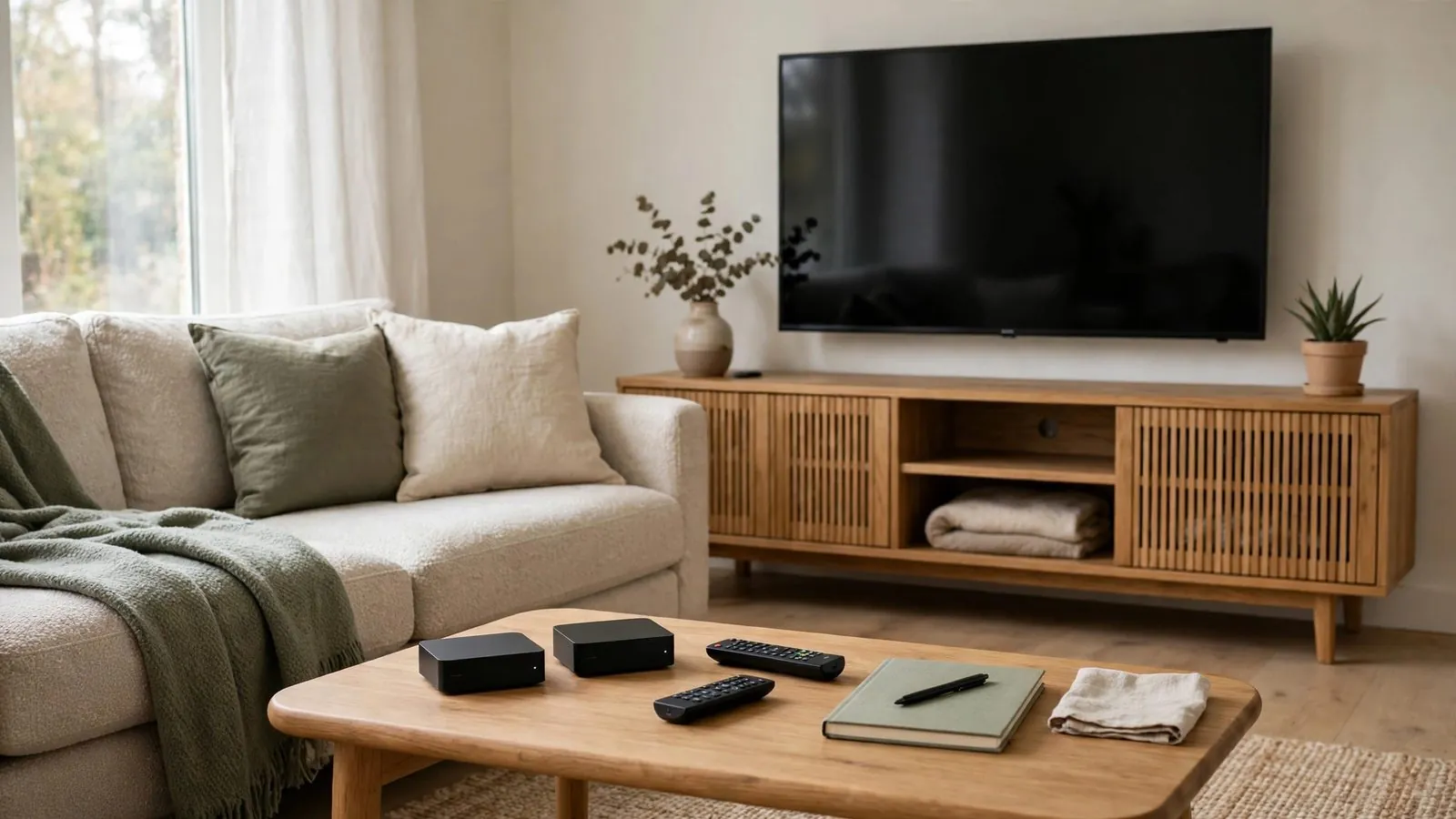
Selecting a media player application for a shared living room television is fundamentally different from configuring an application for personal use on a smartphone or laptop. In a household environment, a single screen serves multiple generations, diverse media habits, and varying levels of technical familiarity. Without careful pre-planning, families often install player software only to discover that the interface is frustrating for grandparents, confusing for children, or lacking essential parental safeguards.
Taking time to formulate the right organizational questions before downloading or configuring any media player application can help reduce recurring friction in the living room. This guide explores the essential non-technical criteria every family should assess, focusing on physical ergonomics, profile separation, multi-language accessibility, visual organization, and credential protection.
1. Remote Control Ergonomics Across Generations
The primary point of physical interaction with any living room player is the television remote control. While advanced users are comfortable navigating complex nested menus or utilizing virtual mouse pointers, young children and elderly family members typically rely on simple directional arrows (D-pad), back buttons, and numerical input.
When evaluating an interface for a family environment, prioritize the following usability factors:
• Standard Directional Pad Navigation: The application must respond predictably to up, down, left, right, and OK clicks. Software originally developed for touchscreens often introduces awkward cursor emulation that can be difficult or frustrating for many household members to navigate with a standard directional remote.
• Legible Typography and Contrast: On a living room screen viewed from several meters away, font size and background contrast are vital. Evaluate whether channel titles, electronic program guide (EPG) grids, and setting descriptions remain readable without squinting.
• Predictable Back-Button Logic: In a well-designed media application, pressing the "Back" or "Return" button should consistently return the user to the immediate previous screen or channel grid. If pressing "Back" abruptly terminates the application or dumps the user onto a raw configuration page, family members will quickly become frustrated.
• Visual Feedback on Selection: Active menu items must feature prominent visual highlights, such as a bold border, a high-contrast color shift, or subtle enlargement. When the active cursor state is faint, users struggle to tell which category or channel is currently selected.
• Direct Number Input and Channel Recall: For family members accustomed to traditional television sets, the ability to type a channel number directly or tap a dedicated button to return to the last viewed channel provides a familiar, comforting routine.
2. Multi-User Profiles and Watchlist Segregation
A common issue in shared living rooms is visual and contextual clutter. When everyone in the house shares a single unorganized favorites list, morning cartoons, afternoon educational programming, evening news, and late-night documentaries become hopelessly tangled together.
Before committing to an application, determine how the software handles household separation:
• Independent Favorite Collections: Does the application support separate favorite groups or individual user profiles? If supported, separate collections help prevent one person's curated list from being buried under other household members' programming, though you should check whether favorites remain strictly local or sync across shared account settings.
• Profile Switching Simplicity: If the application supports profiles, switching between them must be intuitive. A system that requires deep navigation through system settings to change users will simply be ignored by the household, leading to an abandoned organization system.
• Independent Playback History and Resumption: When multiple family members follow series or on-demand content, shared history lists cause confusion. Where multi-user support is available, verify whether the player isolates playback timestamps per profile, as some applications share global resume points across the entire account.
• Search Query Retention: Check whether search history is partitioned by profile or can be manually cleared, which helps keep shared search suggestions from being dominated by a single user's viewing habits.
3. Audio Tracks, Subtitle Controls, and Accessibility
Modern households frequently encompass bilingual members, language learners, or family members with hearing impairments. The flexibility and immediacy of audio and subtitle management are critical evaluation criteria that are frequently overlooked until after software has been deployed.
Consider the following organizational requirements:
• Rapid Audio Track Selection: When a stream provides alternate commentary or language tracks, can the user switch tracks quickly from the active playback screen, or does it require digging through complex audio codec menus?
• Subtitle Visibility and Customization: Subtitles must be easily toggled. Beyond simple on/off switches, an optimal household player allows users to customize subtitle font size, color, and background opacity. Semi-transparent contrasting backgrounds behind subtitle text can improve legibility against bright backgrounds for family members who rely on closed captions.
• Persistent Language Preferences: Does the software allow you to set default preferred audio and subtitle languages globally? Having to manually select the preferred language track every time a channel or video file starts creates unnecessary repetitive friction.
• Audio-Video Synchronization Controls: Occasional slight offsets between spoken dialogue and video frames can be disorienting, particularly for viewers with sensory sensitivities. If audio latency occurs, check whether the player or host device provides an on-screen audio delay calibration slider, as not all applications or streaming operating systems include this control.
4. Channel Curation, Category Management, and Visual Clutter
Many modern media playlists contain thousands of entries spanning dozens of regions, genres, and languages. Handing an unedited, five-thousand-channel directory to a family is a recipe for decision paralysis and accidental misnavigation.
A capable family-oriented player must offer robust category filtering and administrative curation tools:
• Category Hiding and Reordering: Can the primary administrator hide entire regional groups, international bouquets, or content genres that the household never watches? Reducing a massive playlist down to a curated list of relevant categories helps declutter the interface, though hiding categories does not necessarily speed up global search or remove underlying stream data.
• Channel Re-indexing and Renaming: The ability to assign custom numbers or clean up repetitive channel labels makes the electronic guide substantially more navigable for younger viewers.
• Locking the Main Menu: Once the administrator has curated the channel list, can the layout be locked to prevent curious children or accidental button presses from moving, hiding, or deleting established channel folders?
• Custom Group Creation: Beyond standard system categories, evaluate whether the application allows you to build custom groupings, such as a dedicated "Kids Morning" folder or a "Weekend Family" collection.
5. Protecting Credentials, Playlist Tokens, and Parental Controls
Security and digital hygiene within a shared household environment demand proactive management. Media players handle sensitive data, including account credentials, custom playlist URLs, and direct authentication tokens. If these values are displayed in plain text or left unprotected, they risk accidental exposure, unintended alterations, or inadvertent sharing.
Address these security points during your pre-selection review:
• Masking Sensitive URLs and Authentication Tokens: Check whether the player displays full connection strings, server paths, or user access tokens on screen in the settings menu. A properly designed interface masks these fields with asterisks or dots after entry, helping prevent casual observers or visitors from easily copying account keys from the television display.
• Restricted Administrative Access via Master Passcode: Where supported, the application should allow administrators to place configuration menus and playlist management behind a PIN or passcode. This helps protect against accidental deletion of playlists or unintentional changes to connection settings.
• Granular Parental Content Locks: Where parental filtering is offered, check whether mature categories can be hidden from view rather than merely locked upon selection. Because hiding categories or setting PINs does not guarantee zero exposure across global searches or recent history, parents should test these settings across all navigation paths alongside active household supervision.
• Clear Separation of Stored Credentials: Avoid applications that require entering primary master email passwords or sensitive personal identification directly into the media interface. Player software should ideally use dedicated playlist keys or access tokens rather than master personal passwords, reducing the risk of exposing primary accounts on a shared television.
6. Fictitious Household Scenarios: Putting Questions into Practice
To illustrate how these organizational questions apply to real household dynamics, consider the following two explicitly hypothetical examples. Both scenarios demonstrate how addressing specific usability and security needs before installation leads to smooth living room entertainment.
Hypothetical Case A: The Multi-Generational Household
Note: This scenario is an entirely fictitious, illustrative example. All configurations, roles, and credential strings are purely hypothetical.
The fictional Henderson household consists of two working parents, two school-aged children, and a retired grandfather living together. The living room television is the central hub for morning news, weekend children's programming, and evening nature series.
During their preparation phase, the parents established three mandatory criteria:
• The interface must operate purely through physical remote D-pad controls, as the grandfather dislikes virtual pointer systems.
• The main channel guide must be reduced from thousands of general entries to three curated categories: Local Morning News, Wildlife & History, and Junior Animation.
• All configuration menus and server details must be locked behind an administrative PIN.
Before allowing the household to use the player, the parents set up the software. In the settings screen, they imported their media source while ensuring that sensitive tokens—such as hypothetical access paths like example-auth-token-98745-xyz—were immediately hidden behind the application's credential masking feature. They configured an administrative PIN to restrict access to the settings page, hid unneeded international channel bouquets, and adjusted the guide font size for improved legibility.
In this illustrative scenario, this setup simplified daily navigation for the grandfather using a standard remote, while organizing children's programming into a dedicated folder. However, the parents periodically checked the search tab and guide to ensure restricted categories remained inaccessible across software updates.
Hypothetical Case B: The Bilingual Family with Young Children
Note: This scenario is an entirely fictitious, illustrative example. All configurations, roles, and credential strings are purely hypothetical.
The fictional Morales household includes bilingual parents and two toddlers. Their television viewing revolves around language immersion, with a strict balance between English and Spanish programming, alongside heavy reliance on subtitles for evening viewing after the children are asleep.
Their initial evaluation checklist focused on:
• Immediate, on-screen toggling between Spanish and English audio tracks.
• High-contrast subtitle formatting with custom background shading.
• Completely hidden categories for all non-child content during daytime hours.
When testing software candidates, they rejected the first two options because changing the audio track required pausing playback, opening an advanced diagnostic menu, and scrolling through fifteen technical codec parameters. They selected an application that provided direct audio track switching from the remote's shortcut buttons.
During configuration, they masked their playlist connection parameters (user_key_masked_***), locked the playlist management screen, and established two profiles: a Daytime Kids profile containing solely approved educational content, and an Evening Family profile locked with a passcode. The parents set global defaults to display high-contrast yellow subtitles on a translucent black backing for late-night viewing. This illustrative setup addressed their primary audio and subtitle needs, though the family still had to verify that individual media streams provided the required multi-language audio tracks.
7. Household Pre-Selection Checklist
Use this practical evaluation checklist before making a final decision on an application for your living room setup. Review each item with your household's specific users in mind.
``` [ ] Navigation Ergonomics [ ] Operates cleanly using standard remote arrows, OK, and Back buttons. [ ] Avoids requiring virtual mouse mode or touchscreen drag gestures. [ ] Displays an unmistakable, high-contrast visual highlight on selected items. [ ] Menu text and program descriptions are clearly legible from your household's normal viewing distance.
[ ] Multi-User and Profile Organization [ ] Allows creation of separate user profiles or independent favorites lists. [ ] Retains independent playback resumption points for series and long-form media. [ ] Offers a straightforward method to switch between family profiles or lists.
[ ] Accessibility and Language Handling [ ] Allows rapid audio track switching during playback when alternate audio streams exist. [ ] Supports customizable subtitle styling (font size, color, background contrast). [ ] Remembers default audio and subtitle language choices globally.
[ ] Category Management and Interface Tidiness [ ] Enables hiding, reordering, and locking unneeded channel groups. [ ] Helps protect against accidental deletion of categories via layout locking or confirmation prompts. [ ] Supports custom grouping for family-specific interests.
[ ] Credential Privacy and Child Safety [ ] Masks account tokens, server URLs, and playlist links behind asterisks. [ ] Provides a master PIN or passcode to lock administrative and playlist settings. [ ] Supports granular category hiding or passcode locking for mature content. [ ] Masks or obscures private authentication strings from on-screen view. ```
8. Qualitative Feature Evaluation Framework
When comparing candidate media player applications, rely on qualitative indicators of household suitability rather than arbitrary marketing claims or technical jargon. The following framework outlines what to seek and what to avoid across key family dimensions:
Evaluation Dimension: Physical Remote Control · Desired Family-Friendly Behavior: Full D-pad compatibility, logical Back button, clear focus indicators · Red Flag / Usability Obstacle: Requires virtual mouse emulation, tiny touch targets, unhighlighted buttons
Evaluation Dimension: Screen Legibility · Desired Family-Friendly Behavior: Scalable typography, high contrast, clean program grid layout · Red Flag / Usability Obstacle: Tiny fixed fonts, cluttered metadata overlays, dark-gray text on black backgrounds
Evaluation Dimension: Profile Management · Desired Family-Friendly Behavior: Option for separate user favorites or profiles, intuitive switching · Red Flag / Usability Obstacle: Single combined watchlist with no separation between household members
Evaluation Dimension: Audio & Subtitle Controls · Desired Family-Friendly Behavior: Accessible playback menu for audio tracks, customizable subtitle styling or outlines · Red Flag / Usability Obstacle: Settings buried in deep technical menus, fixed low-contrast subtitles difficult to read against bright scenes
Evaluation Dimension: Category Organization · Desired Family-Friendly Behavior: Ability to hide irrelevant regional folders and lock layout changes · Red Flag / Usability Obstacle: Enforces an unchangeable list of thousands of unfiltered entries
Evaluation Dimension: Credential Safeguards · Desired Family-Friendly Behavior: Visual masking of account tokens/playlist URLs, passcode protection on settings · Red Flag / Usability Obstacle: Plain-text display of sensitive credentials, unrestricted settings vulnerable to accidental changes
10. Aligning Interface Simplicity with Family Routines
A successful home media setup is defined not by the sheer number of advanced settings an application offers, but by how effortlessly the entire household can use it. When an interface respects physical remote ergonomics, protects private credentials, separates individual watchlists, and keeps channel categories tidy, the living room screen becomes an accessible, enjoyable hub for everyone.
By systematically reviewing these questions before choosing a media player, you increase the likelihood of selecting software that accommodates your household's daily routines without unnecessary complexity.
Want the full Alfa IPTV experience?
Frequently asked questions
Why is remote control compatibility more critical than visual skin customizability?
In a shared family space, functionality and predictability always outweigh aesthetic customization. While visual themes and decorative interface skins may appeal to enthusiastic hobbyists, an interface that does not respond reliably to a standard directional pad creates immediate barriers for younger and older family members. If users struggle to navigate back to the previous screen or cannot tell which button is currently selected, the media system quickly becomes frustrating to use.
How does hiding channel categories improve the overall living room experience?
Modern playlists often contain extensive international libraries, specialized regional feeds, and categories your family will never watch. When thousands of unused entries remain visible in the guide, scrolling through the program list requires excessive button presses. Hiding irrelevant categories streamlines the on-screen guide, though it does not replace the need for parental oversight or guarantee faster backend searches.
Why should playlist URLs and access tokens always be masked on a family TV?
Connection URLs and direct authentication tokens represent private keys to your media configuration. In a family setting, televisions are frequently visible to visiting guests, friends of your children, or service personnel. If an application prints full connection parameters in plain text across a 55-inch living room display, those private keys can easily be photographed or copied. Selecting an application that obscures authentication tokens helps prevent shoulder-surfing and accidental exposure on a shared television screen, though overall account security still relies on keeping master credentials safe.
Can parental controls be maintained if an application lacks built-in profile features?
If a media player lacks dedicated multi-user profiles, you can still maintain basic organizational control if the software supports master PIN protection for the settings menu and individual category locks. By locking mature categories and restricting settings behind a passcode, you add a layer of protection against accidental browsing, though parents should still verify that locked items cannot be reached through search or recent channel lists.
What should we check regarding subtitle rendering before adopting a player?
Always verify whether the application renders subtitles with an adjustable background container or thick black outline. Many default players display raw, thin white text without any drop shadow or background shading. When watching bright programming, plain white text without an outline or backing box can blend into the background imagery, making subtitles difficult to read for family members who rely on captions.
Read next: the pricing page or the FAQ.